
Joomla 6.1.0 has been released recently. It brings back a CAPTCHA plugin to the Joomla core. However, it's totally different than previous CAPTCHA plugins that relied on 3rd party's services and required an API key. Also, the privacy concerns are completely addressed with the new Proof of Work CAPTCHA plugin.
The new CAPTCHA plugin presents a math problem to the browser. The browser should solve it automatically without user interaction. Based on the time needed to solve the problem, it proves that the user is human and uses a real browser, and minimizes the chances that the form is submitted by a spam bot.
How to Enable the Proof-of-work CAPTCHA
After updating your website to the latest version of Joomla 6.1.x, the Proof-of-work CAPTCHA plugin will be installed and published automatically. The only thing you should do is to enable it in the Global Configuration. So, from your Joomla Administrator panel, go to System > Global Configuration. Under the Site tab, find the Default Captcha selector. By default, None is selected. Select the "CAPTCHA - Proof of Work" here.
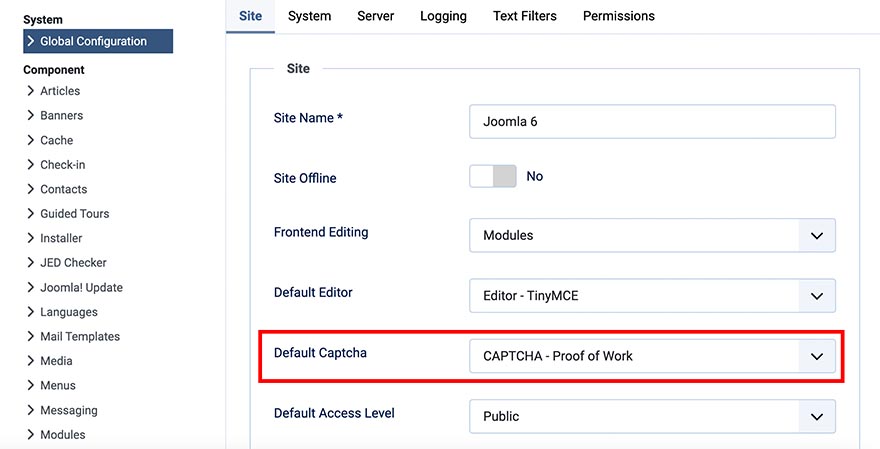
If you don't see the "CAPTCHA - Proof of Work" option, make sure that:
- Your Joomla version is 6.1.0 or later
- Go to System > Plugins. Find the plugin "CAPTCHA - Proof of Work" and make sure it's enabled.
- If you don't see the plugin, it may be uninstalled. Go to System > Discover and try to find this plugin and re-install it.
Testing the CAPTCHA on the Contact Form
After enabling the Proof of Work CAPTCHA, it should be automatically activated on the Joomla contact form and other forms that support the Joomla CAPTCHA plugin. Go to your contact page, and above the "Send Email" button, you should see the CAPTCHA.
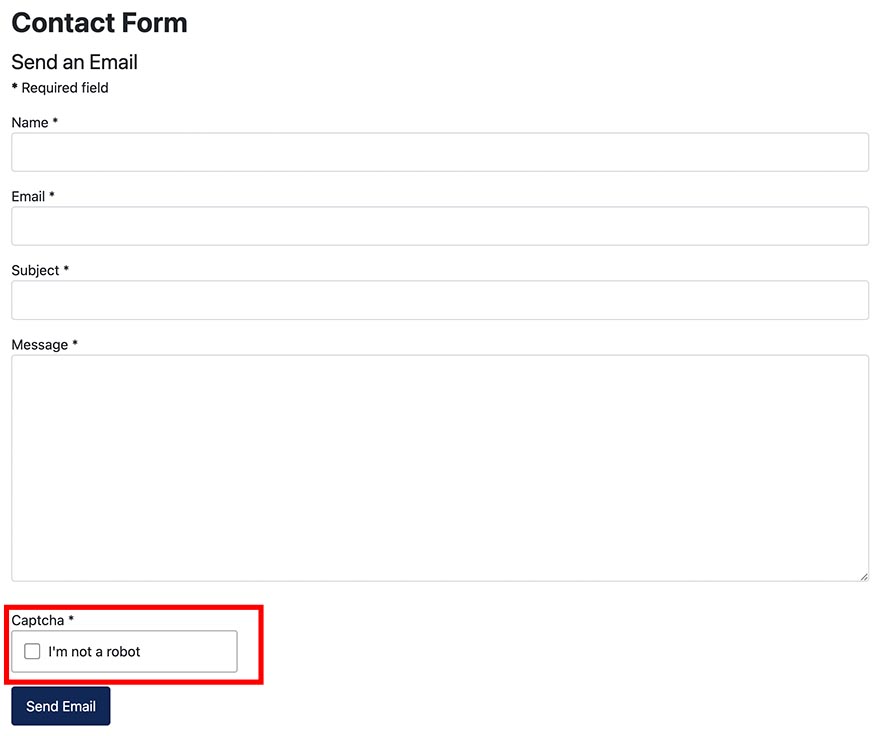
The user just has to click on the checkbox to confirm he's a human rather than a bot. After that, the form is ready for submission.
Parameters of the CAPTCHA Proof of Work plugin
To access the parameters of the new CAPTCHA plugin, from your Joomla Administrator panel, go to System > Plugins. Find the plugin "CAPTCHA - Proof of Work" and click on it to open its settings.
You will see the 3 parameters of this plugin, and each of them defines how the plugin behaves on the site frontend.

Difficulty
Easy, moderate, hard, or custom. By default, it's set to Easy. However, if you are receiving spam emails from the Joomla contact form, consider using a higher level of difficulty.
Automatic Solution
By default, it's set to "When the CAPTCHA field receives focus". So, when the user checks the checkbox, the automatic solution is initiated. This is usually good for most cases. However, you can also try an automatic solution, "When page is loaded" or "When form is submitted". Also, the automatic solution can be disabled. Again, you can experiment with different settings to see which one works best for your website. The aim is to reduce or neutralize the number of spam emails sent from the Joomla contact form.
Expiration
This is the amount of time that the form is ready for submission AFTER the solution of the math problem presented by the CAPTCHA. By default, it's set to 5 minutes. You can also set it to 1 minute, 10 minutes, or 1 hour.