
We are happy to announce the Sparky Page Builder v1.4. This is the Joomla page builder we developed and included in all our newer templates. This new version brings many new features that will make creating your Joomla pages even easier and more comfortable. All the bugs that were discovered in the previous version are addressed.
New Features
Undo/Redo Buttons in Joomla Toolbar

You can use the Undo/Redo buttons to cancel the changes you made recently, before the article was saved. This includes all the changes in the layout (adding or deleting rows, columns, and blocks, as well as changes in the rows, columns, and block positions), changes in the row, column, and block settings, and many other operations. If you undo any operation by mistake, you can use the redo button to make the same operation again.
This feature will help you a lot whenever you make any action by accident or if you change your mind during the page creation.
Added Bold, Italic, and Underline Buttons for Paragraph, List, and Heading blocks
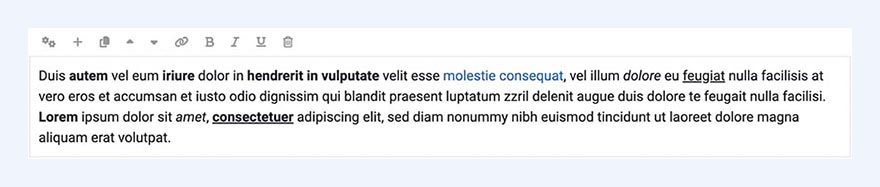
New icons are added to the Paragraph, List, and Heading blocks toolbars, allowing you to make a part of the text bolded, italic, or underlined by clicking on the button from the block's toolbar. Also, when text is bolded, it is not wrapped up into a "strong" container, but into a "b" container as before.
Heading blocks can have multiple links

Now you can select just a part of the Heading block's text and assign a link to it. So, you can have multiple links inside a single heading, which is useful for long headings that should be linked.
Also, you can still assign a link through the Heading block's settings, and, in this case, the entire heading will be linked while all partially added links will be cancelled.
Better Drag and Drop
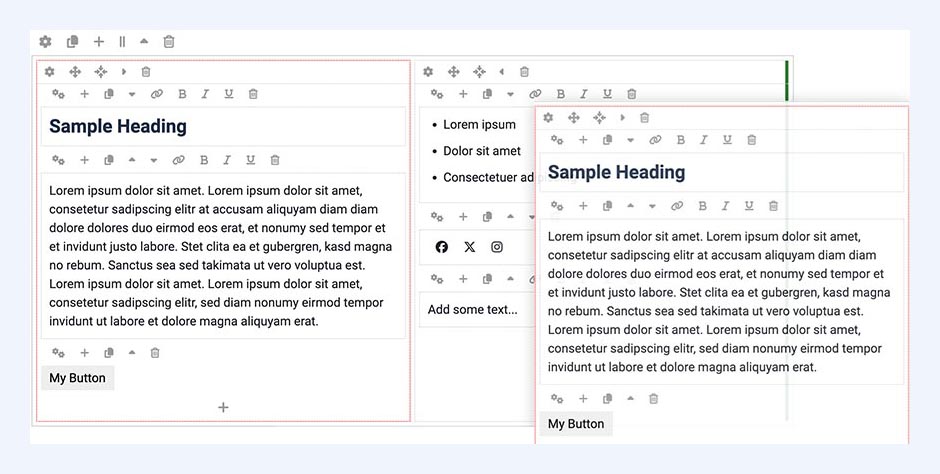
Dragging and dropping of elements is now easier and more logical. You can drag a row, column, or block and drop it to a different location more easily and precisely than before. Now, the drop locations are indicated clearly. This minimizes the chances of dropping any element into the wrong location.
Use ENTER to add new or split existing paragraph
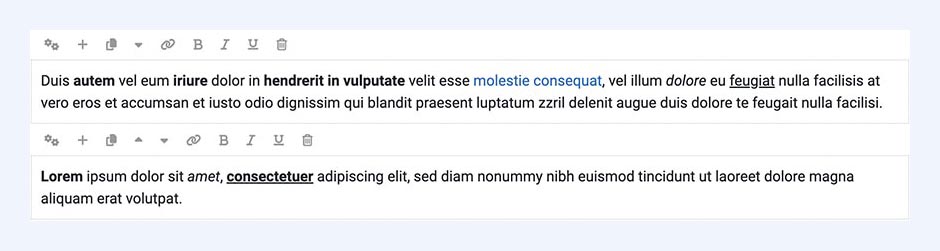
While you are typing in the Paragraph block, you can now click ENTER to create a new Paragraph block automatically. This dramatically simplifies entering a large amount of text. Also, if you have a paragraph of text and want to split it into two paragraphs, point the text marker to a splitting position and click ENTER. This paragraph will be splitted to two Paragraph blocks.
Add a new row from the row toolbar. Add a new block from the block toolbar.
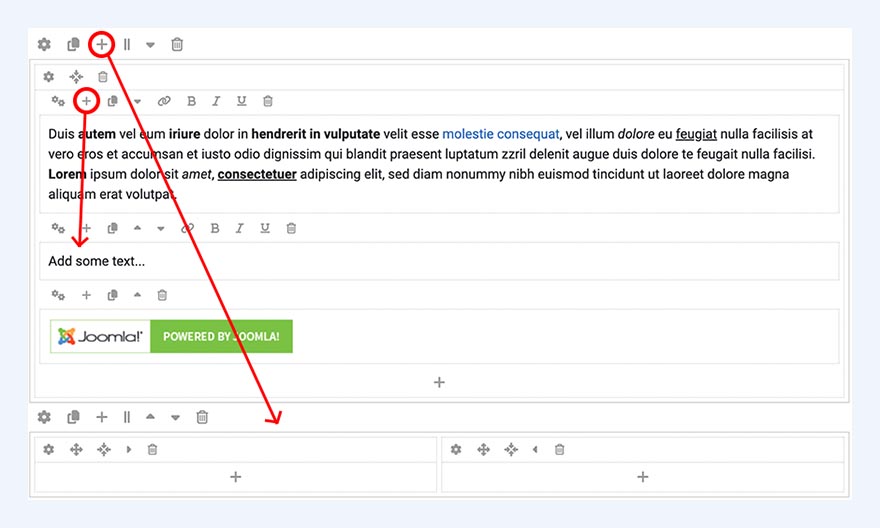
Since this version, you can add a new row by clicking on the Add Row button on bottom of the editor. This would create a new row at the bottom of the layout. This button still works, but we also added a Plus button to the Row toolbar. By clicking this Plus button, you would add a row directly below this row. This is useful if you have a page with many rows. If you want to add a row between two existing rows, you can do this with a single click, without moving the new row up to the desired position later as before.
A similar feature is added to the toolbars of all blocks. Now, if you have multiple blocks in a column (which is often the case), if you want to add a new block between two existing blocks, just click the Plus icon from the block toolbar. A new block will be created below this block. You can also add a new block as before to the end of the column by clicking the Plus icon, which is located at the bottom of each column.
Easier moving of rows and block up/down
If you want to move a row up or down, you can do this by clicking on the arrow up or down from the row's toolbar. However, if you want to move it to multiple positions up or down, you can do this more easily now, because each click on the arrow up or down icons is followed by a viewport scroll, keeping your cursor on the same icon. So, just multiple clicks without cursor movement will move the row multiple places up or down.
A similar logic is implemented for the blocks. Now, when you want to move any block multiple positions up or down within a column, it's much easier than before.
Add Row, Read More, and Page Break buttons
These buttons are still at the bottom of the Sparky Page Builder's layout and still have the same function. However, in the new version, the layout of these buttons is updated to optimize the space usage.
Bugfixes
Adding links from Firefox
Adding links to the Paragraph and List blocks from Firefox was not possible. It's fixed now, so the Sparky Page Builder is fully functional for Firefox users.
Row's custom ID
Entering a custom ID for a row from the row settings and deleting it later led to leaving this row without any ID. This caused an inability of Sparky to recognize the layout, so it was necessary to add the row ID manually in the HTML code. This problem is fixed now by generating a new random ID for the row when the old row ID is deleted by the user.
Enjoy the New Features by Downloading Any Sparky Page Builder Powered Templates

We have updated the Sparky Page Builder in all templates that have this extension included in the template package. Currently, there are 36 templates powered by the Sparky Page Builder, and counting. All these templates (and much more) are included by joining our Joomla template club and are also available for single purchases. All templates are based on the latest Joomla 6 and work fine without compatibility plugins enabled.
If you have never used our Joomla page builder, learn more about it on its main page. Also, you can read detailed documentation to learn how it works and what you can do with it.